
Purpose
When using Microsoft OneNote for the first time on a new or reimaged computer, you will need to open each notebook you want available.
Opening notebooks starts the sync process and ensures your content is ready when you need it, even after future restarts or sign ins.
Before You Begin
Ensure you are signed in to your CCPS account
Confirm the computer is connected to the internet
How to Set Up OneNote
Step 1: Open OneNote
Click the Windows Start Menu.
Choose OneNote from the list of applications.
Step 2: Load Your Profile
OneNote will begin loading your profile.
Step 3: Open Your Default Notebook
Once loaded, your default notebook will open automatically.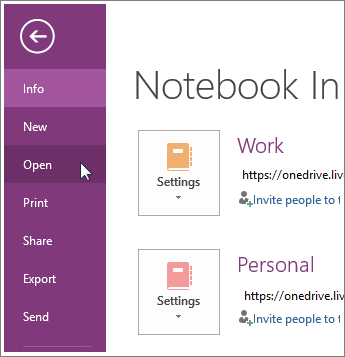
Step 4: Open Additional Notebooks
Click File.
Select Open.
Choose the notebooks you want to add.
You may need to search for them. Your most recently accessed notebooks will appear at the top of the list.
Tip
Open all notebooks you use regularly. This ensures they stay synced and available for offline access.
Need Help
If you have questions or experience issues with OneNote, please submit a ticket with the Help Desk team so they can provide assistance.
Summary
Opening your notebooks on a new or reimaged computer ensures your OneNote content syncs properly and remains accessible across all your CCPS devices.
Comments
Article is closed for comments.